


LM Studio: Local LLM Desktop App Complete Setup Guide
Run open models privately on your own computer: this LM Studio walkthrough explains hardware checks, quantized downloads, presets and serving models to apps.
LM Studio is a free local LLM desktop app that lets you run large language models privately on Windows, macOS and Linux without sending your prompts to remote servers. It gives you a user-friendly interface for downloading, managing and chatting with open-weight AI models, and it can expose those same models to your own code through a local, OpenAI-compatible API.
This guide is the LM Studio-specific companion to broader local LLM tutorials. It is based on the official LM Studio documentation and reflects the state of the app on October 30, 2026, when the current desktop release was LM Studio 0.4.27 (published October 29, 2026). Menus and option names change between releases, so check the in-app docs if a label differs on your machine.
What this guide covers: installing LM Studio, checking system requirements, choosing and downloading models, chatting with models and documents, saving presets, tuning load and inference settings, running the local server with OpenAI-compatible and Anthropic-compatible endpoints, and fixing the most common problems. It does not compare every local AI runtime or cover cloud-hosted alternatives.
Who this is for: privacy-conscious users, developers, researchers and businesses that need offline AI capabilities. Whether you are a healthcare professional handling sensitive data or a developer prototyping AI solutions against a local endpoint, the steps below apply regardless of technical experience level.
Why this matters: running models locally keeps your conversations and documents on your own computer, removes per-request API charges, and keeps working without an internet connection once a model is downloaded. That combination is particularly useful in regulated industries and for anyone who wants full control over their AI tools.
What you'll learn:
- How to install and configure LM Studio on macOS, Windows and Linux
- How to select and run models that fit your hardware
- How to save system prompts and parameters as reusable presets
- How to set up API endpoints for application integration
- How to troubleshoot performance issues and memory constraints
Understanding Local LLM Desktop Applications
Local LLM desktop applications are programs that run large language models directly on your computer and process every AI interaction locally. Unlike cloud-based AI services such as ChatGPT or Claude, which send your input to a provider's servers, an app like LM Studio executes inference on your own CPU and GPU. Your prompts, the model's responses and any files you attach stay on the machine, and you control the model, its parameters and its behavior.
If you are still deciding which runtime or model family to use, start with our overview of how to choose, set up and use local LLM models, which compares tools and hardware in general terms. This article stays focused on LM Studio itself.
Privacy and Data Security Advantages
According to LM Studio's offline operation documentation, the core functions of the app do not require the internet: chatting with downloaded models, chatting with documents and running the local server all work offline. The documentation states that nothing you enter when chatting leaves your device, and that documents you drag into a chat are processed locally.
Searching for and downloading models, downloading runtimes and checking for app updates do need a connection. Once you have the models and runtimes you need, you can work fully offline. This makes the app a practical fit for healthcare providers handling patient records, financial teams managing sensitive data and legal professionals working with confidential documents, provided your own device security and data policies are in order.
Cost and Performance Considerations
Local LLMs replace recurring API fees and usage limits with a hardware investment you may already have made. The software itself costs nothing: LM Studio has been free for personal use since launch, and on July 8, 2025 the company removed the separate commercial license requirement, so teams can also use it at work under the updated terms.
The trade-off is performance. The speed and quality you get depend on your RAM, GPU memory and the size of the model you choose. A small quantized model on a laptop answers quickly but with less depth than a frontier cloud model; larger models need more memory and patience. For a hands-on comparison of LM Studio and Ollama setups and how to check output quality, see our guide on how to run an LLM locally with LM Studio or Ollama.
LM Studio Features and Capabilities
LM Studio turns local LLM deployment into a desktop experience, combining open-weight models with an interface that feels familiar to anyone who has used a cloud chatbot. Under the hood it runs models with llama.cpp (GGUF files) on all three platforms and with Apple's MLX framework on Apple Silicon Macs.
Core Desktop Application Features
The app provides a ChatGPT-like chat interface. According to the chat documentation, you can create many conversation threads, organize them in folders, duplicate chats and view two chats side by side in split view. Since version 0.4.0, chats can be exported to PDF, Markdown or plain text.
You can attach .docx, .pdf and .txt files to a conversation and ask questions about them, which LM Studio calls Chat with Documents. The built-in model browser connects to Hugging Face, so you can search, download and run different models with point-and-click operations. LM Studio uses GPU acceleration when it is available, and you can adjust model parameters such as temperature in real time to fine-tune behavior for specific needs.
Developer and Advanced Features
In the Developer tab, LM Studio becomes a local server that exposes OpenAI-compatible APIs, Anthropic-compatible APIs and its own native REST API. This lets developers point existing applications at a local endpoint instead of a cloud API while keeping the rest of their architecture unchanged.
Other documented capabilities include acting as a Model Context Protocol (MCP) host since version 0.3.17, speculative decoding with a smaller draft model, and parallel requests with continuous batching on the llama.cpp engine since version 0.4.0.
Platform Support and Compatibility
Platform support has changed since many older guides were written. Per the official system requirements, LM Studio runs on Apple Silicon Macs with macOS 14.0 or newer (Intel Macs are not supported), on x64 and ARM Windows PCs including Snapdragon X Elite systems, and on x64 and ARM64 Linux, where it is distributed as an AppImage for Ubuntu 20.04 or newer.
The app supports GGUF models on every platform and MLX models on Apple Silicon, which gives Mac users an engine optimized for unified memory. Popular open model families such as Qwen, Mistral, Gemma, Llama, DeepSeek and gpt-oss are available through the Discover tab, subject to each model's own license.
LM Studio App, llmster and lms
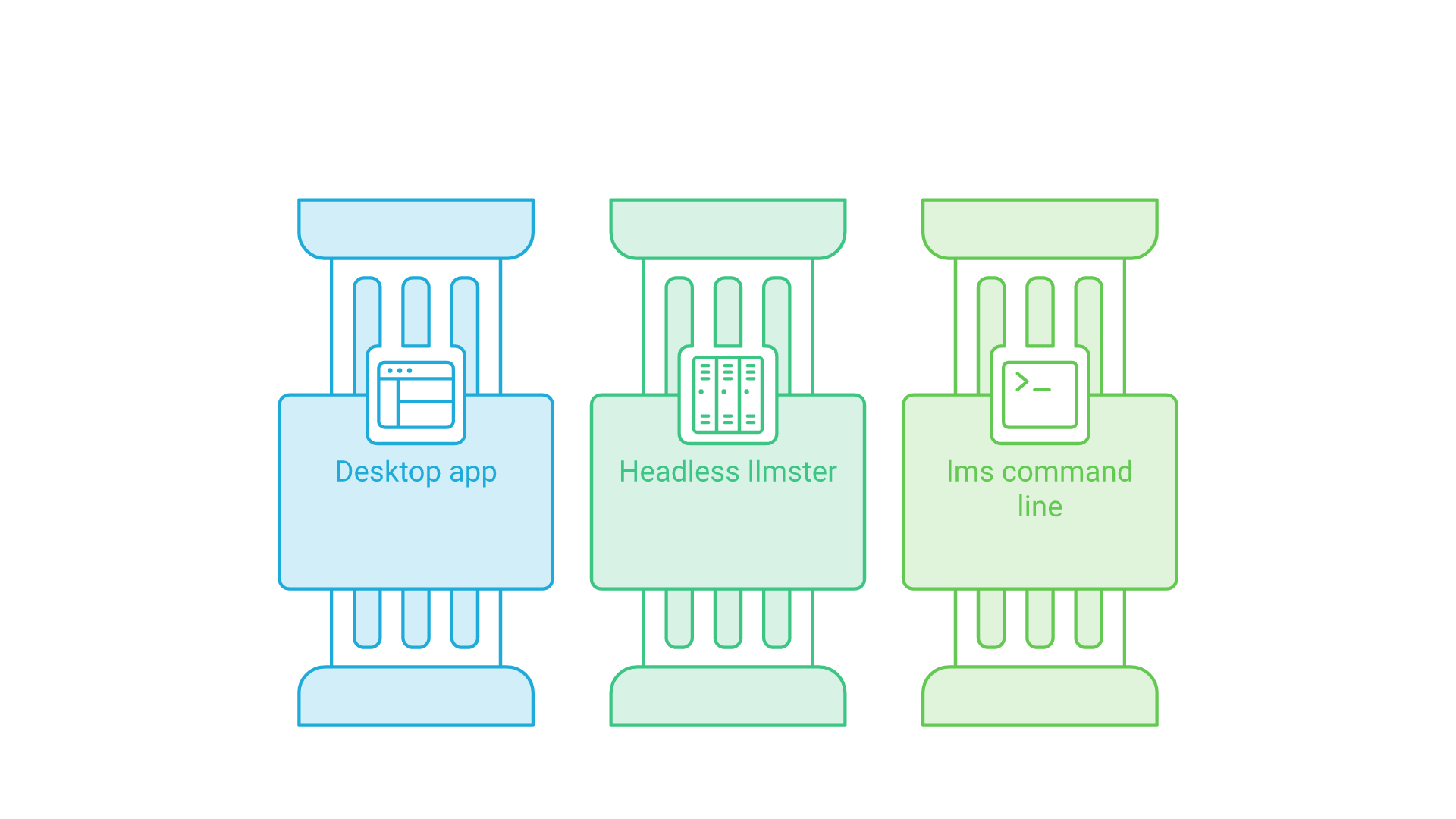
LM Studio now ships as three related tools, as explained in the app, llmster and lms overview. The desktop app is the graphical interface with the full feature set. llmster, introduced with LM Studio 0.4.0 in January 2026, is the headless daemon for servers, GPU rigs and CI pipelines. lms is the open-source, MIT-licensed command-line tool that ships with the app and controls models, the server and runtimes from a terminal. LM Studio Bionic, launched in July 2026, is a separate agent app built on the LM Studio runtime and is outside the scope of this setup guide.
Key points:
- Familiar chat interface with folders, split view and document attachments
- Integrated model search and download from Hugging Face
- GGUF on all platforms and MLX on Apple Silicon
- Local server with OpenAI-compatible, Anthropic-compatible and native REST endpoints
- Headless and command-line options for automation
Installation and Setup Process
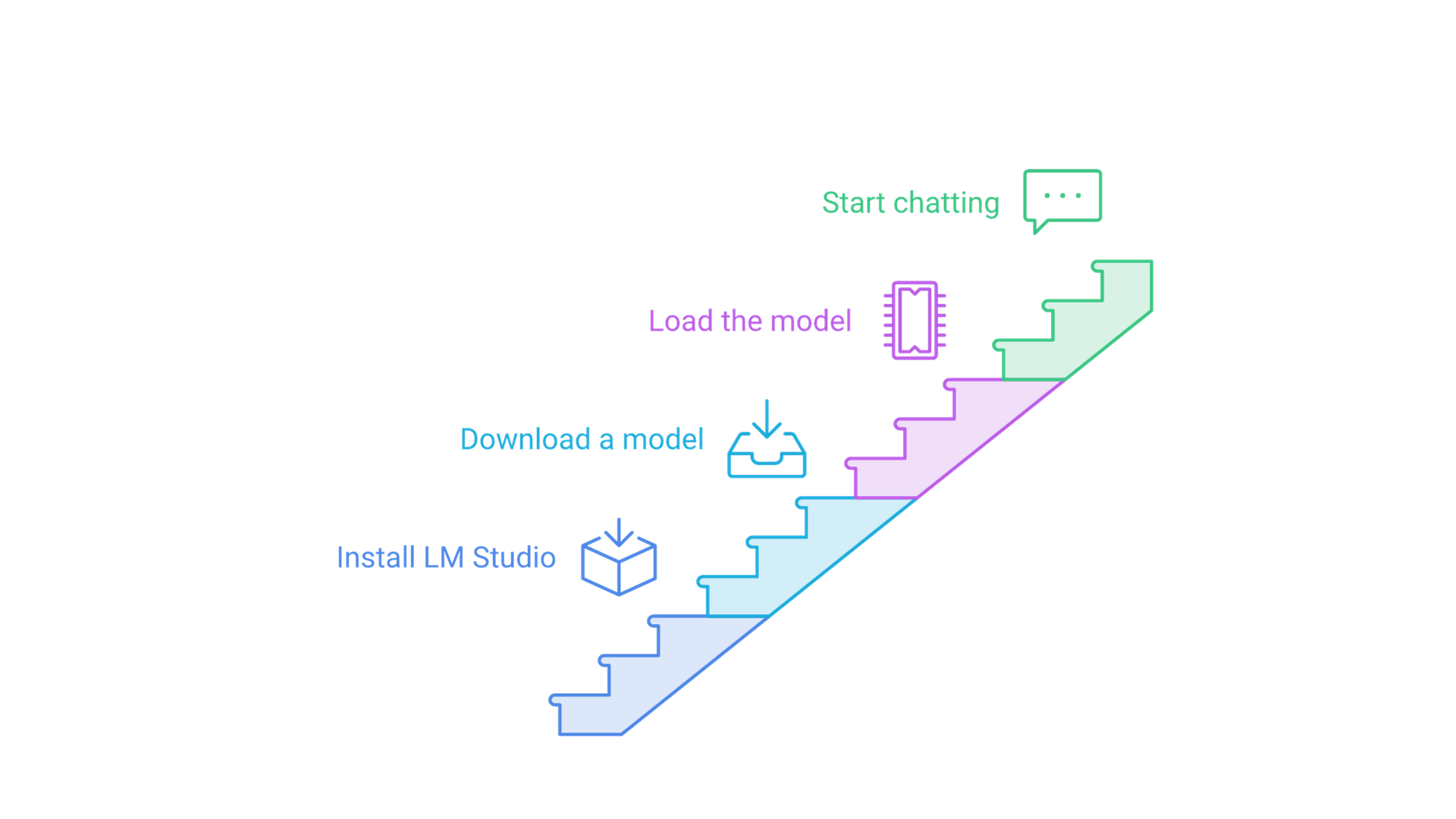
The installation process differs slightly by operating system, but the overall flow is the same everywhere: install the app, confirm your hardware, download a model, load it and start chatting.
Step-by-Step: Installing LM Studio
Follow these steps for a first-time installation on any supported operating system or when setting up LM Studio on several machines.
- Check requirements. Confirm your machine meets the system requirements in the next section, especially the Apple Silicon requirement on Mac and AVX2 support on x64 Windows.
- Download LM Studio. Get the installer for your operating system from the official download page at lmstudio.ai. Avoid third-party mirrors.
- Run the installer. On macOS, move the app to Applications. On Windows, run the installer and accept the default path unless you need a different directory. On Linux, make the AppImage executable and run it.
- Complete the first launch. Open LM Studio and follow the onboarding prompts. Running the app once also makes the
lmscommand-line tool available. - Verify the installation. Download a small model from the Discover tab, load it in the Chat tab and send a simple test prompt to confirm everything works.
On macOS and Windows, a built-in updater checks for new versions; on Linux, the documentation notes the in-app updater is still in the works, so check the download page for new AppImage releases.
System Requirements Comparison
The official requirements, as published on October 30, 2026, are summarized below.
| Specification | macOS | Windows | Linux |
|---|---|---|---|
| Processor | Apple Silicon (M1, M2, M3, M4) | x64 with AVX2, or ARM (Snapdragon X Elite) | x64 (AVX2 build by default) or ARM64 |
| Operating system | macOS 14.0 or newer | Windows on x64 or ARM | Ubuntu 20.04 or newer (AppImage) |
| RAM | 16GB or more recommended; 8GB can work with small models | At least 16GB recommended | Not specified |
| GPU | Integrated Apple GPU with unified memory | At least 4GB dedicated VRAM recommended | Not specified |
| Not supported | Intel-based Macs | x64 CPUs without AVX2 | Ubuntu releases newer than 22 are not well tested |
These are minimums for running the app, not for every model. Storage needs grow with each model you download, because a single model file can take several gigabytes, so keep plenty of free SSD space. As a rule of thumb, smaller models with modest context sizes suit 8GB to 16GB machines, while larger models need more RAM or VRAM. LM Studio can estimate a model's memory needs before loading it: the lms load command has an --estimate-only flag that prints a resource estimate without loading the model.
Model Selection and Download Process
Open the Discover tab (Cmd+2 on Mac, Ctrl+2 on Windows and Linux) to download models. The download documentation explains that you can search by keyword, by a user/model string or by pasting a full Hugging Face URL. Popular model families include Llama, Qwen, Mistral, Gemma, DeepSeek and gpt-oss, each with different strengths, sizes and licenses.
Most models appear in several download options with names such as Q4_K_M, Q5_K_M or Q8_0. These are quantized copies of the same model: the number roughly reflects how many bits each weight uses, and lower numbers mean smaller files with some loss of quality. LM Studio's own guidance is to choose a 4-bit option or higher if your machine can run it. Balance parameter count against your available memory and the tasks you have in mind.
You can also download from the terminal with lms get, for example lms get llama-3.1-8b@q4_k_m to request a specific quantization, and filter results with --mlx or --gguf. If you already have a GGUF file from elsewhere, lms import (experimental) brings it into LM Studio, or you can place it under ~/.lmstudio/models/publisher/model/ as described in the import guide. The models directory itself can be changed from the My Models tab.
Chatting, Presets and Model Settings
Once a model is downloaded, most day-to-day work happens in the Chat tab and its sidebar. Understanding the difference between load settings and inference settings, and saving your favorite configurations as presets, makes LM Studio far more productive.
Loading a Model and Starting a Chat
In the Chat tab, open the model loader, select a downloaded model and optionally adjust its load parameters. The getting started guide explains that loading a model allocates memory for its weights in RAM or VRAM. After that, you can create a new chat with Cmd+N or Ctrl+N and start a conversation. The model does not learn from your chats; it only knows what is in the current conversation and its configuration, such as the system prompt.
Chat with Documents (RAG)
When you attach a document, LM Studio decides how to use it. According to the Chat with Documents guide, a document short enough to fit in the model's context window is added to the conversation in full. A longer document triggers retrieval-augmented generation (RAG), where the app retrieves the most relevant passages and passes only those to the model. Retrieval works better when your question includes the specific terms you expect to appear in the source material.
System Prompts and Presets
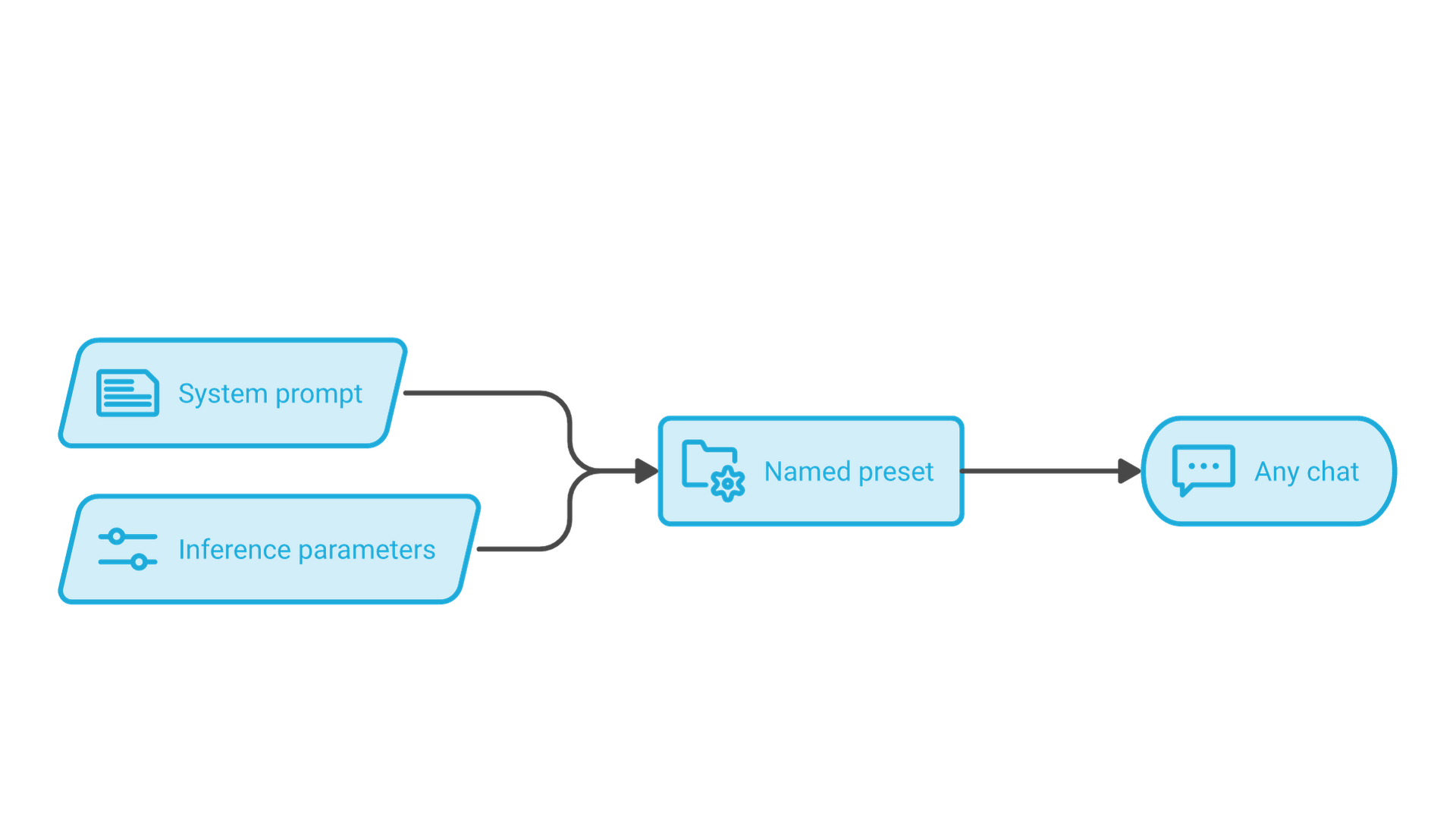
The Presets documentation describes a preset as a named bundle of a system prompt and inference parameters, such as temperature, top P or maximum tokens, that you can reuse across chats. You might keep one preset for careful technical answers, another for brainstorming and another for summarizing long documents, and switch between them in a click.
Presets are JSON files stored in ~/.lmstudio/config-presets on macOS and Linux, or %USERPROFILE%\.lmstudio\config-presets on Windows. Since version 0.3.15, you can import presets from a file or URL and publish your own to the LM Studio Hub, which makes it easy to share a team's prompt library.
Load Settings and Inference Settings
LM Studio separates two kinds of settings. Load settings are applied when the model is loaded into memory: GPU offload, context length and options such as Flash Attention. Inference settings apply to each response: temperature, top P, maximum tokens and the system prompt. Presets record inference settings; load settings belong to the model.
You can save load settings as per-model defaults from the gear icon in My Models, and they are then used wherever the model loads, including through lms load. From the terminal, --gpu accepts a fraction from 0 to 1, max or off, and --context-length sets the token window. If you leave GPU offload unspecified, LM Studio determines it automatically. Most models need no changes to their prompt template, because LM Studio reads it from the model's metadata, but you can override it with a Jinja or manual template if a model's metadata is missing or wrong.
User and Developer Modes
LM Studio has two interface modes, described in its UI modes documentation. User mode shows only the chat interface and configures everything automatically, which suits beginners. Developer mode, enabled in Settings > Developer, reveals all advanced options across the app, including load and inference parameters and the ability to insert, edit and continue messages for either role.
Running the Local Server and OpenAI-Compatible API
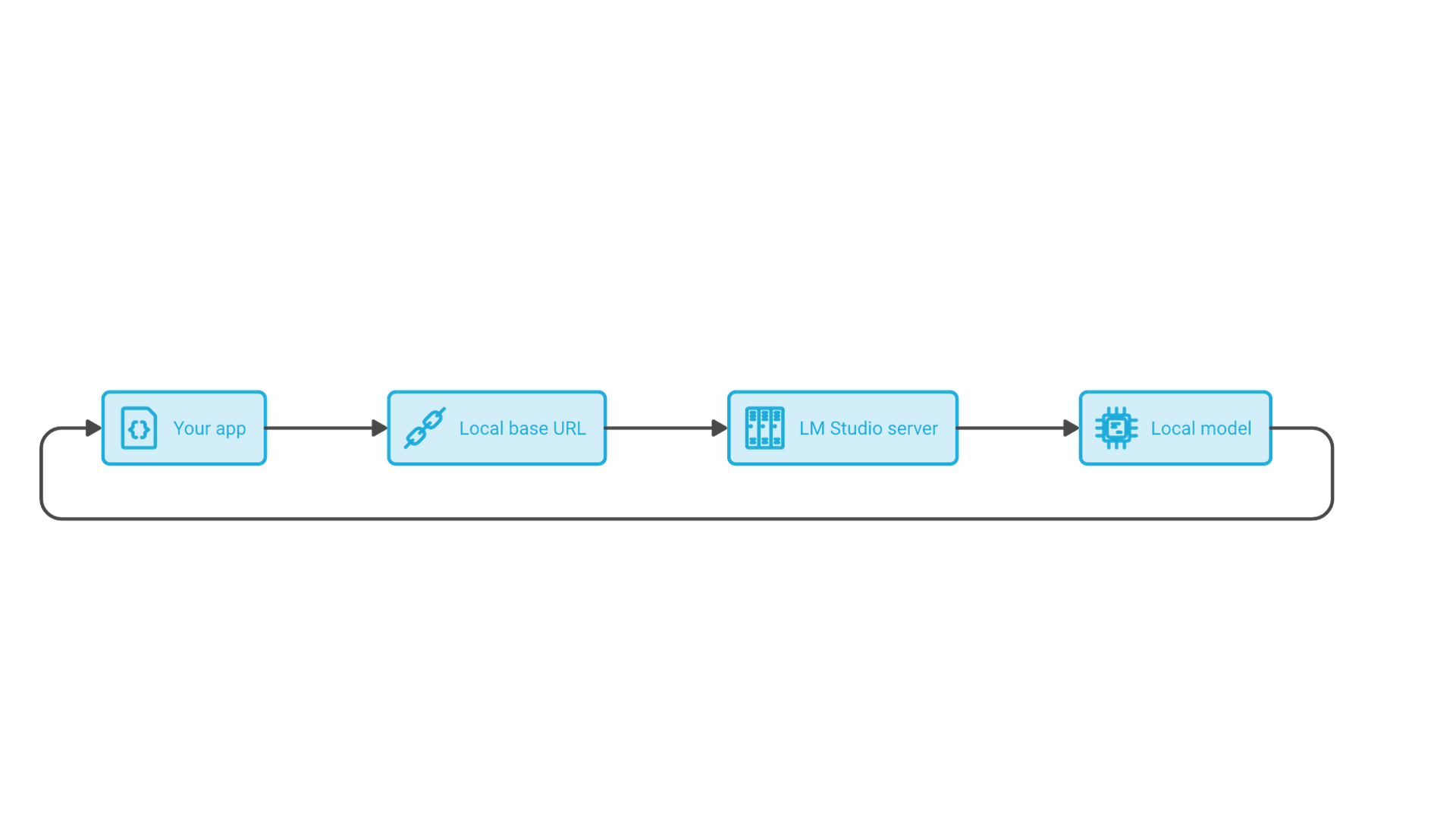
The local server turns LM Studio from a chat app into a development platform: tools that talk to the OpenAI or Anthropic APIs can usually be pointed at LM Studio by changing their base URL.
Start the Server
Open the Developer tab and toggle Start server, or run lms server start in a terminal, as described in the server documentation. The official examples use port 1234, so a typical base URL is http://localhost:1234/v1. You can choose another port with lms server start --port or in Server Settings, and lms server status confirms that the server is running.
OpenAI-Compatible Endpoints
The OpenAI compatibility documentation lists these endpoints:
GET /v1/modelsto list modelsPOST /v1/responsesfor the Responses APIPOST /v1/chat/completionsfor chat with text and imagesPOST /v1/completionsfor legacy completionsPOST /v1/embeddingsfor embeddingsPOST /v1/decisionsfor LM Studio's decision models
With the official OpenAI Python SDK, you only change the base URL and pass the model identifier that LM Studio shows for your loaded model. The SDK expects an API key value, so pass a placeholder string when authentication is turned off:
from openai import OpenAI

client = OpenAI(base_url="http://localhost:1234/v1", api_key="lm-studio")

response = client.chat.completions.create(
    model="your-model-identifier",
    messages=[{"role": "user", "content": "Say this is a test!"}],
    temperature=0.7,
)
print(response.choices[0].message.content)
Because LM Studio implements /v1/responses, the documentation notes that OpenAI's Codex can also use it. If you are planning to move a prototype like this into production systems, our AI integration services cover connecting models to existing applications, data and workflows.
Anthropic-Compatible Endpoint and Native REST API
LM Studio also implements POST /v1/messages, documented on its Anthropic compatibility page. That page shows how to run Claude Code against a local model by setting ANTHROPIC_BASE_URL to http://localhost:1234. When authentication is on, the endpoint accepts either an x-api-key header or a standard bearer token.
For features the compatibility layers do not expose, LM Studio's native v1 REST API, released with version 0.4.0 at /api/v1/*, adds stateful chats, MCP access through the API, and endpoints to download, load and unload models. Official SDKs are also available as lmstudio-python and lmstudio-js.
Server Settings: Authentication, Network Access, CORS and JIT Loading
The server settings control how exposed and how memory-hungry your server is:
- Require Authentication makes clients send an API token, created under Manage Tokens. Authentication is off by default and requires LM Studio 0.4.0 or newer.
- Serve on Local Network binds the server beyond localhost so other devices can use it. The CLI equivalent is
lms server start --bind 0.0.0.0. - Enable CORS lets browser-based apps and some editor extensions call the server.
- Just in Time Model Loading loads a model when a request names it, and idle JIT-loaded models are unloaded after a default time-to-live of 60 minutes.
LM Studio's documentation warns that any bind other than 127.0.0.1 and enabling CORS can expose the server to security risks, and recommends turning on authentication in both cases. Treat a network-exposed LM Studio server like any other internal API: restrict it to trusted networks and keep tokens out of shared code.
Run LM Studio Headless with llmster
If you want the server without the GUI, the headless documentation recommends llmster. It installs with a one-line script from lmstudio.ai on Mac, Linux or Windows and starts with lms daemon up. Alternatively, keep the desktop app and enable the setting that runs the LLM server on login, so closing the window minimizes LM Studio to the system tray while the server keeps running.
Connect MCP Servers
LM Studio can connect local and remote MCP servers to your models through an mcp.json file that follows Cursor's notation, as described in its MCP documentation. The documentation warns never to install MCP servers from untrusted sources, because some can run code, read local files or use your network, and notes that MCP servers designed for large cloud models can consume many tokens and overflow a local model's context. For background on how the protocol connects models to tools, read how the Model Context Protocol works.
Common Challenges and Solutions
New LM Studio users tend to hit the same problems: hardware limits, memory configuration and API connections. Most yield to systematic troubleshooting.
Challenge 1: Insufficient Hardware Performance
Solution: choose a smaller model or a more compressed quantization, and make the most of your GPU. A 4-bit quantization such as Q4_K_M is a common balance of size and quality, while Q5_K_M or Q8_0 trade more memory for higher fidelity when your hardware allows. Increase GPU offload as far as your VRAM permits, and on Apple Silicon try the MLX version of a model where one exists. For long answers from a large model, speculative decoding with a compatible smaller draft model can speed up generation, at the cost of extra memory for the second model.
Challenge 2: Model Loading and Memory Issues
Solution: match the model and its settings to the RAM and VRAM you actually have. If a model fails to load or your system slows down, lower the GPU offload so that less is placed in VRAM, reduce the context length, or pick a smaller quantization. Context length matters more than many users expect, because a longer window needs more memory on top of the model weights. Run lms load with --estimate-only to preview memory needs, check which models are resident with lms ps, and unload models you are not using.
Challenge 3: API Integration and Connection Problems
Solution: confirm the server is running, then check the port, base URL and model identifier. Make sure the Developer tab shows the server as started, note the port, and test it with curl http://localhost:1234/v1/models before wiring up a full application. If a client runs on another device, enable Serve on Local Network and confirm your firewall allows the connection. If you enabled authentication, the client must send a valid token. Browser-based clients may also need CORS enabled, and if JIT loading is off, the model must already be loaded before requests can use it. lms log stream shows the prompts the server receives, which helps diagnose formatting problems.
Challenge 4: Odd or Repetitive Output
Solution: check the prompt template and inference parameters. If a model answers in broken formats or never stops, its metadata may be missing or incorrect, and overriding the prompt template from My Models can fix it. Very high temperature values also produce erratic text, so return to a preset with moderate values before deeper debugging.
Additional Resources
The official LM Studio documentation is the most reliable reference for features, system requirements and model compatibility, and the developer documentation covers the API, SDKs and integrations in detail. The lms CLI reference documents every command for automation, and release notes on the LM Studio changelog show what changed in each version.
For model choice, start with the Discover tab's staff picks and check each model card on Hugging Face for license terms and recommended settings. For community help, LM Studio runs an official Discord server, and bugs can be reported in the lmstudio-bug-tracker repository on GitHub.
Frequently Asked Questions
Is LM Studio free?
Yes. LM Studio is free to download and use at home, and since July 8, 2025 it is also free to use at work without a separate commercial license, under the app's terms of use. The models you download carry their own licenses.
Does LM Studio work offline?
Yes, once you have downloaded models. Chatting, chatting with documents and running the local server work without internet. Searching for and downloading models, downloading runtimes and checking for updates need a connection.
Does LM Studio run on Intel Macs?
No. The current system requirements list Apple Silicon (M1 to M4) with macOS 14.0 or newer. Intel-based Macs are not supported.
What port does the LM Studio server use?
The official examples use port 1234, giving a base URL of http://localhost:1234/v1. You can change the port in Server Settings or with lms server start --port.
Can I use LM Studio with the OpenAI SDK?
Yes. Point the SDK's base URL at your LM Studio server and use the model identifier LM Studio shows. It supports chat completions, responses, completions, embeddings and model listing.
Which quantization should I download?
LM Studio recommends a 4-bit option or higher if your machine can run it. Lower-bit files are smaller and faster but lose some quality; higher-bit files need more memory.
Conclusion and Next Steps
LM Studio is one of the most accessible ways to run large language models locally. It combines a familiar chat interface, a Hugging Face model browser, reusable presets and a local server that speaks the OpenAI and Anthropic API formats, all while keeping your data on your own machine. That makes it practical for individual researchers, developers and organizations that need stronger privacy controls.
To get started, download LM Studio for your operating system from the official website, confirm your hardware meets the requirements, choose a model that fits your memory with a 4-bit or higher quantization, and test it with a few prompts. Then save your best settings as a preset and, if you build software, start the local server and point a client at it.
When a local prototype needs to become a governed, production-grade system, our LLM solutions help teams choose models, deploy them on private infrastructure and integrate them with real workflows.
If you are planning a private or on-premises LLM deployment and want help moving from desktop experiments to a reliable service, contact Cognativ to discuss your project.