
Create Your Own Local AI Assistant for Enhanced Privacy
A local AI assistant keeps chats and files on hardware you control. This walkthrough covers the chat interface, document questions, voice and locking down data.
Artificial intelligence has reached a stage where individuals and small teams no longer need to depend solely on big tech ecosystems for smart assistants. A local AI assistant runs AI models directly on your own devices or on a server you control, which gives you enhanced privacy and far more control over your data.
Unlike cloud-based assistants that send every prompt to remote servers, a private AI assistant built on local models can keep conversations, queries and files on your own local machine. Done carefully, this setup reduces the risk of data leaks, removes dependence on external services for core tasks and keeps sensitive information under your control.
This guide is about the assistant itself: the chat interface people actually use, the ability to ask questions about your own documents, optional voice input and output, and the privacy settings that decide whether your data really stays local. It reflects the tools and documentation available as of October 2026, including Ollama, LM Studio, Open WebUI, Nextcloud Assistant and Leon.
What a Local AI Assistant Is (and How It Differs From a Local LLM)
A local LLM is a language model whose weights run on your hardware. A local AI assistant is the complete product built around that model: a chat interface, conversation history, access to your files, optional speech, user accounts and the settings that control what leaves the device. If you are new to the model side, start with our guide to what a local LLM is and how to use one, then come back here to turn it into something you can use every day.
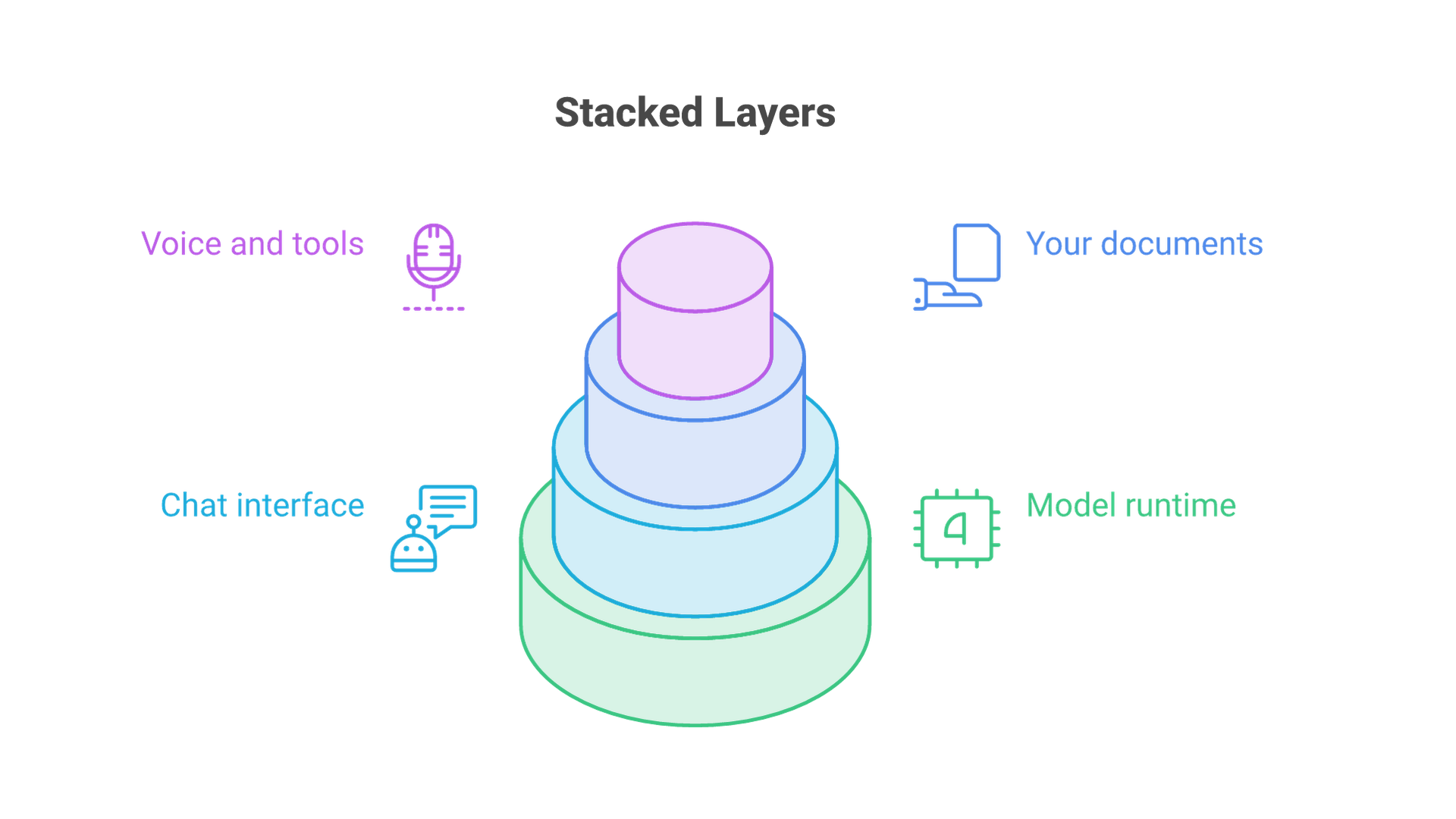
In practice, a private AI assistant has four layers:
- Model runtime: the engine that loads and runs local models, such as Ollama, LM Studio's built-in runtime or llama.cpp.
- Assistant interface: the chat UI, history, prompts and settings, such as Open WebUI, the LM Studio or Ollama desktop apps, AnythingLLM, Jan or Nextcloud Assistant.
- Knowledge layer: an embedding model and vector index that let the assistant search your documents.
- Optional extras: speech-to-text, text-to-speech, image generation and tools that can take actions.
An assistant is also different from an autonomous agent. An assistant answers and drafts while you stay in the loop; an agent plans and executes multi-step tasks with tools. If you want the assistant to act on its own, our guide to local AI agents covers planning, tool permissions and guardrails. This article stays focused on the conversational assistant that most people and teams need first.
Benefits of Local Models
The value of local models extends beyond data control. Here is why building your own local AI assistant can outshine traditional cloud-based options, along with the conditions that make each benefit real.
Data Privacy
When inference runs on your local machine, prompts and documents do not need to travel to a third-party model provider. Ollama's documentation states that when you run it locally, the company does not see your prompts or data (Ollama FAQ). LM Studio's documentation says that nothing you enter when chatting with LLMs leaves your device (LM Studio offline docs). That matters for personal sensitive data such as health or finances, and for professional material such as client contracts or confidential projects. The benefit holds only if every connected feature, including web search, cloud model connectors and plugins, is also local or disabled.
Cost Control
Running models locally avoids per-token or per-seat cloud fees for routine work. You still pay for hardware, electricity and maintenance, so the savings depend on how heavily the assistant is used and on whether existing hardware can carry the load.
Flexibility and Customization
A private AI assistant can be tuned to your workflow. You choose the model, the system prompt, the documents it can search and the tools it may call. Open source frameworks let you extend functionality through plugins, functions or community-built extensions.
Offline and Resilient
Once models are downloaded, a local assistant can work without a constant internet connection, which cloud voice assistants such as Alexa or Google Assistant cannot do for most requests. LM Studio documents that it can operate entirely offline, with internet needed only for tasks such as model search, model downloads, runtime downloads and app updates (LM Studio). This is useful in environments with limited connectivity or strict network policies.
Integration Potential
Because Ollama, LM Studio and llama.cpp expose OpenAI-style local APIs, your assistant can connect to scripts, local databases and existing apps. Ollama, for example, serves an OpenAI-compatible API at http://localhost:11434/v1/, including chat completions and embeddings (Ollama OpenAI compatibility).
Future-Proofing
Open-weight model families such as Llama, Mistral, Qwen, Gemma and OLMo keep improving. A modular assistant lets you swap the model without rebuilding the interface. In short, local AI assistants are about privacy, control and predictable costs.
Building a Private AI Assistant
Now that the benefits of local models are clear, how do you actually create your own private AI assistant? The five steps below move from scope to deployment. Each decision narrows the next one, so resist the urge to install tools before Step 1 is written down.
Step 1: Define Your Goals
Write down the jobs the assistant must do and who will use it. Typical goals include:
- Answering questions about personal or team documents.
- Summarizing and rewording documents, notes or meeting transcripts.
- Assisting with coding and development workflows.
- Handling speech commands or hands-free conversation.
- Generating visuals through image generation.
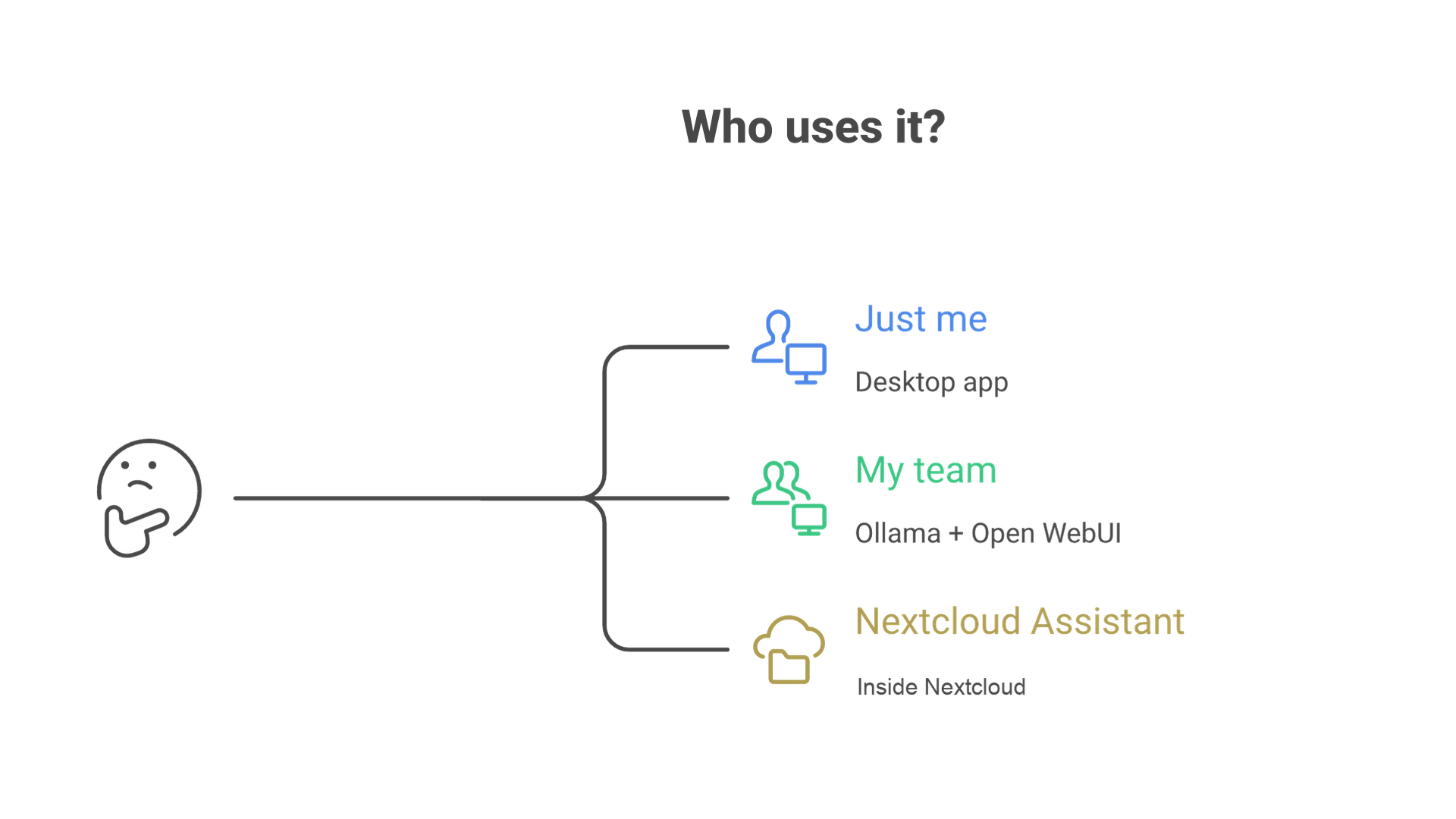
Also decide whether this is a single-user desktop assistant or a shared team assistant. A personal assistant can be a single desktop app. A team assistant needs accounts, roles, a server that stays on and someone responsible for updates. Your overall design and architecture will differ depending on that scope.
Step 2: Choose Your Foundation Tools
Pick one runtime and one interface. A personal assistant may need only LM Studio or the Ollama app; a shared assistant often pairs Ollama with Open WebUI; Nextcloud users can keep everything inside Nextcloud Assistant. The open source solutions section below compares each option.
Step 3: Plan Your Architecture
Plan where each layer runs and where data is stored:
- Local server setup: decide whether to host it on a Linux, Windows or Mac system, or on a dedicated box on the local network.
- Data storage: keep chat history, uploaded files and vector indexes on encrypted drives, and know where each tool writes them.
- APIs and integrations: connect external cloud services only when necessary, and treat each one as a deliberate exception to your privacy model.
Step 4: Improve Accuracy
Most accuracy gains for an assistant come from better context, not from training a new model:
- Chunking and embedding: split long documents into chunks and embed them for semantic search.
- Grounding with your context: add personal documents or project files to a knowledge base so the assistant can answer from them.
- Response optimization: refine the system prompt, model choice and context length, then test with real questions to minimize irrelevant outputs.
Step 5: Deployment
For a single user, deployment can be as simple as installing a desktop app. For a team, lightweight container setups make it easier to manage running LLMs, apply updates and move to new hardware. Open WebUI, for example, documents installation with Docker and Docker Compose, Kubernetes with Helm, or pip install open-webui (Open WebUI features). At this stage, you will have a functional local AI assistant that you can harden with the privacy settings described below.
Open Source Solutions
The open source ecosystem means you are not reinventing the wheel. Several tools and frameworks already exist to bootstrap your local AI assistant. They differ mainly in who they are built for: an individual on a laptop, a team in a browser, or an organization already running a collaboration platform.
Leon
Leon is an open source personal AI assistant that is now in a major transition. Its repository states that development is focused on a 2.0 Developer Preview on the develop branch, with the core being rebuilt around tools, memory, context and agent-style execution, while the master branch keeps the legacy, more stable version (Leon on GitHub). The README describes installation by cloning the repository and running it with pnpm, Node.js 24 or later, on Linux, macOS or Windows, and says Leon can work with local models and local context. Because the new documentation is not finished, Leon suits developers who want to follow and contribute to a project in motion more than teams that need a stable assistant today.
Nextcloud Assistant
Nextcloud Assistant is ideal if you already use Nextcloud for files and collaboration. Nextcloud's admin manual lists a local large language model app, llm2, and a local Whisper speech-to-text app, alongside Context Chat for answers grounded in your Nextcloud data (Nextcloud AI docs). According to its documentation, llm2 runs only open source models and does so entirely on-premises, ships with models including Qwen 3.5 9B, Gemma 4 E4B and OLMo 3 7B Instruct, and needs either an NVIDIA GPU with at least 8 GB of VRAM or a CPU with AVX and AVX2, plus at least 12 GB of system RAM (Nextcloud llm2 docs).
Ollama
Ollama focuses on running LLMs locally and supports multiple models in one environment. It binds to 127.0.0.1 on port 11434 by default, stores models in a local directory and exposes a local API that many interfaces build on (Ollama FAQ). Its desktop app for macOS and Windows adds a built-in chat window with file drag and drop for text and PDFs, plus a context length setting for larger documents (Ollama app announcement).
LM Studio
LM Studio is GUI-driven and suits users who want local LLM capabilities without heavy coding. You can attach .docx, .pdf and .txt files to a chat; if a file fits in the model's context, LM Studio adds the whole document, and for very long documents it uses retrieval augmented generation to pull the relevant sections (LM Studio chat with documents). Since version 0.3.17 it can also act as an MCP host, connecting tool servers to your models (LM Studio MCP docs), and it can serve models over a local API.
Open WebUI
Open WebUI is a self-hosted, browser-based interface that works well as the front end of a team assistant. Its feature list includes chat with Ollama or any OpenAI-compatible provider, knowledge bases with vector search and hybrid BM25 search with reranking, document upload with several extraction engines, speech-to-text and text-to-speech, and roles, groups and per-resource permissions (Open WebUI features). It can also connect to cloud providers and web search, so it is only as private as its configuration.
AnythingLLM and Jan
AnythingLLM, from Mintplex Labs, packages RAG, AI agents and a chat interface into a desktop app for individuals and a Docker version with permissioning for organizations (AnythingLLM docs). Jan is a desktop app for chat, models, MCP connectors and a local API server (Jan docs). Review any cloud connectors before using either with sensitive data.
LLaMA.cpp & Beyond
llama.cpp is a minimalist C/C++ implementation for running AI models locally. Its stated goal is to enable LLM inference with minimal setup and state-of-the-art performance on a wide range of hardware, and it includes an OpenAI-compatible server (llama.cpp on GitHub). Many friendlier tools build on the same ecosystem and its GGUF model files, which is why local AI assistants do not always need expensive servers to operate.
Why Open Source Wins?
- Transparency: you can review the code and see what is sent where.
- Flexibility: you can build extensions for industry-specific workflows.
- Community support: tutorials, forums and documentation evolve rapidly.
Open source does not guarantee privacy on its own. Read the license, check the project's activity and still verify network behavior on your own systems.
Setting Up Your Local AI Assistant
Building is one step, but setup is the make-or-break phase. The flow below uses a common team pattern, Ollama plus Open WebUI, but the same sequence applies to other stacks.
Step-by-Step Setup Flow
- Install dependencies. Install the runtime (for example Ollama) and the interface (for example Open WebUI via Docker or pip). Make sure the right GPU drivers are installed if you plan to use a GPU.
- Download models while connected. Pull a chat model sized for your hardware and, if you will use document Q&A, the embedding model. Offline setups fail later if models are not cached in advance.
- Configure your assistant. Set the default model, the system prompt and the context length. Create the admin account first, then decide how other users join.
- Integrate tools and skills. Add knowledge bases, optional speech input and output, and only the tools or functions you actually need.
- Test thoroughly. Run sample questions against known documents, check that answers cite the right sources and compare a few models for the same task.
- Secure and maintain. Apply encryption to stored data, restrict network exposure and keep models and software updated to fix vulnerabilities.
Avoiding Pitfalls
- Do not underestimate system performance requirements; larger models need more memory and faster hardware.
- Do not leave the context window at a default that is too small for your documents.
- Avoid storing sensitive data unencrypted, including chat history and vector indexes.
- Do not expose the model server to the network without authentication and firewall rules.
Open WebUI's troubleshooting guide notes that Ollama picks a default context length from available VRAM and that, on GPUs with less than 24 GiB, that default is 4,096 tokens, so retrieved document content can be trimmed before it reaches the model (Open WebUI RAG troubleshooting). Raise the context length for the model if your hardware can support it.
Local Document Q&A: Chat With Your Files Privately
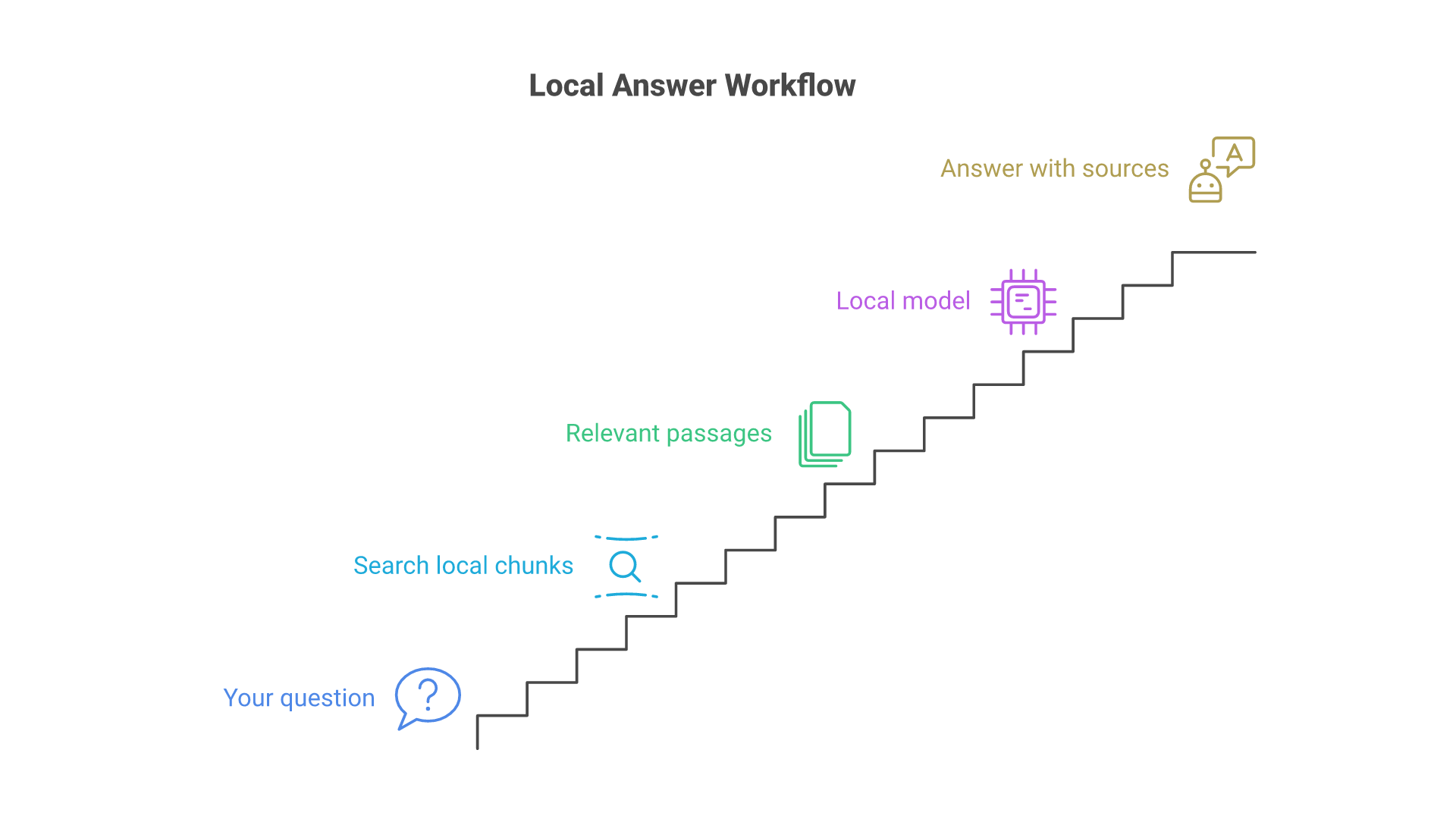
For many people, the main reason to build a private AI assistant is to ask questions about documents they cannot paste into a public chatbot: contracts, research notes, internal policies or project files. This is retrieval augmented generation (RAG), and every step can run locally.
How Local Document Q&A Works
When you add files to a knowledge base, the assistant extracts the text, splits it into chunks and turns each chunk into an embedding, a vector that captures meaning. When you ask a question, it embeds the question, finds the most similar chunks, and passes them to the chat model with instructions to answer from that evidence. Open WebUI's default embedding model, all-MiniLM-L6-v2, runs locally with no extra setup, according to its troubleshooting guide (Open WebUI RAG troubleshooting). Ollama can also serve embeddings through its local API.
Full Context or Retrieval
Short documents can be passed to the model whole. LM Studio does this automatically when a file fits in the model's context and switches to retrieval for very long documents (LM Studio). Open WebUI offers a full context mode that injects entire documents without chunking (Open WebUI features). Full context is simpler and avoids missed passages; retrieval scales to large libraries.
Tuning Retrieval Quality
- Use chunk sizes that fit comfortably in your model's context; Open WebUI's guide suggests smaller chunks for constrained local models.
- Reindex all existing documents after changing the embedding model.
- Use an embedding model that matches the languages in your documents.
Document Q&A is also where privacy and quality meet. If an assistant answers from your own knowledge base, you can check its sources, which is much harder with a general cloud chatbot. When document assistants move from a pilot to a business-critical system, a structured LLM solution design helps define retrieval, evaluation and access rules before rollout.
Advanced Features and Image Generation
A basic private AI assistant can already handle language tasks, but extra capabilities make it part of daily work. Add them one at a time. The options covered here include voice, image generation, topic extraction and summarization, text operations, communication support and smart home control, and productivity boosts.
Voice: Speech In, Speech Out
Voice is optional, but it turns a chat window into a hands-free assistant. Open WebUI's default speech-to-text engine is local Whisper, with the base Whisper model by default, while its text-to-speech engine is disabled by default and can be pointed at local or cloud engines (Open WebUI audio settings). Standalone components are also available: whisper.cpp is a C/C++ port of OpenAI's Whisper with CPU-only, NVIDIA, Vulkan and Apple Silicon support (whisper.cpp), and Piper is a fast, local neural text-to-speech engine (Piper). Nextcloud also offers a local Whisper speech-to-text app.
Image Generation
Using open models such as the Stable Diffusion family, you can create graphics or illustrations directly on your machine instead of relying on external platforms. Image models usually run in a separate tool, and they need more GPU memory than many text-only setups, so treat them as an optional add-on that you start only when needed.
Topic Extraction and Summarization
Summarize meeting notes, chat logs and documentation, or extract key themes from large text files. Combined with local speech-to-text, an assistant can transcribe a recording and draft a summary without the audio leaving your network.
Text Operations
Vision-capable models add image understanding; Nextcloud's llm2 documentation, for example, lists image analysis and OCR task types for vision-capable models (Nextcloud llm2).
Communication Support and Smart Home
For the home, Home Assistant's Ollama integration adds a conversation agent powered by a local Ollama server; letting it control devices is experimental, needs a model with tool support and is recommended with fewer than 25 exposed entities for local models (Home Assistant Ollama integration).
Productivity Boosts
Integrate with Python scripts or code editors through the local API, or add tools through MCP. LM Studio's documentation warns that some MCP servers can run arbitrary code, access local files and use your network connection (LM Studio MCP docs), so add only tools you trust.
Privacy Settings That Keep Your Assistant Local
Installing local tools does not automatically make an assistant private. Several popular tools can also reach cloud models, web search or remote tool servers. Use the checklist below to decide, setting by setting, what is allowed to leave the machine.
Turn Off Cloud Features You Do Not Use
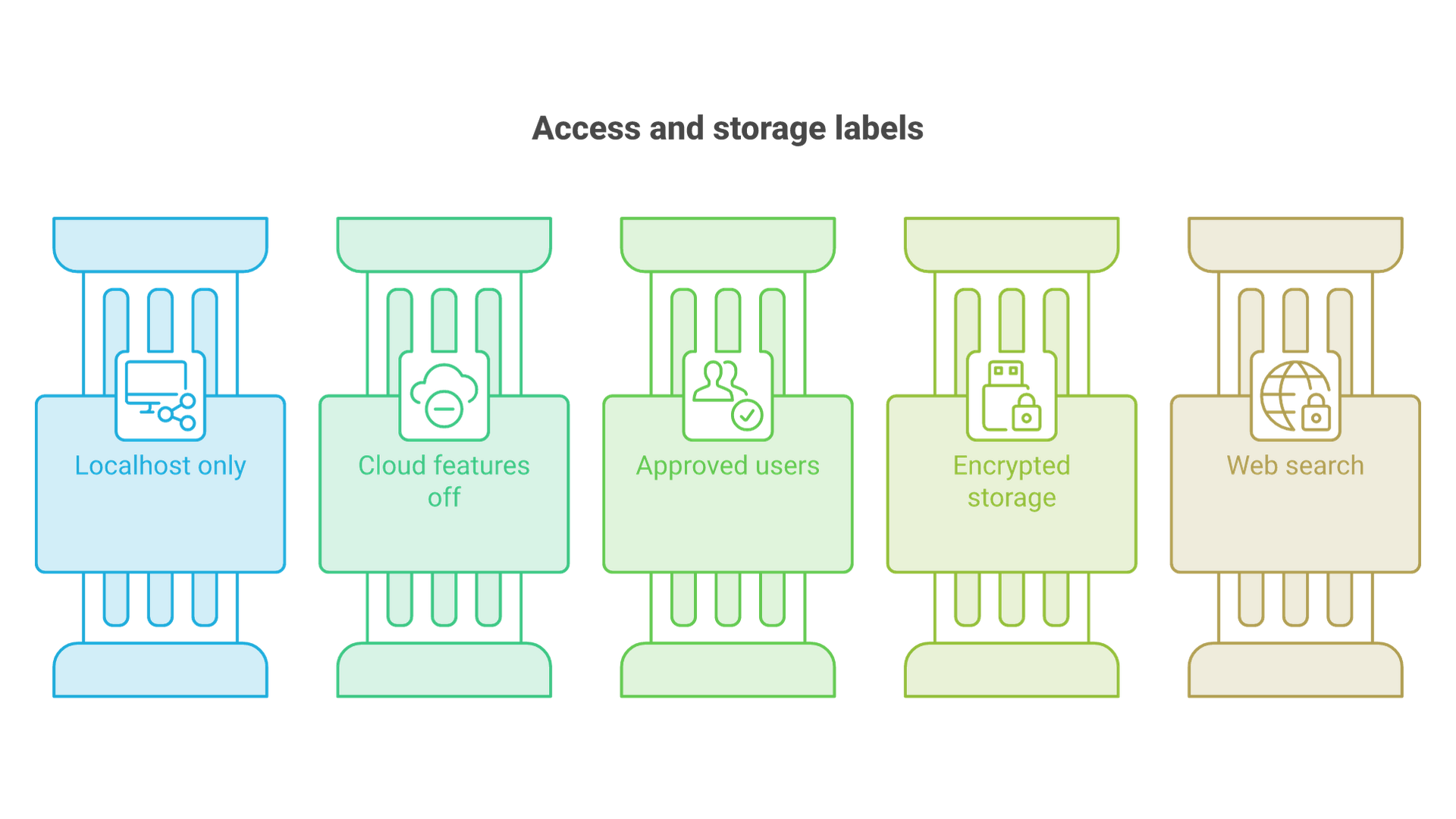
Ollama can run optional cloud models. Its FAQ explains that you can disable cloud features by setting "disable_ollama_cloud": true in ~/.ollama/server.json or by setting OLLAMA_NO_CLOUD=1, and that doing so also disables cloud models and web search (Ollama FAQ). In Open WebUI, leave cloud provider connections and web search off unless you have a reason to enable them, because web search sends queries outside your machine.
Control Network Exposure
Keep the model server bound to localhost when only one machine uses it. Ollama binds to 127.0.0.1:11434 by default; setting OLLAMA_HOST to 0.0.0.0:11434 exposes it on the network (Ollama FAQ). If a team needs access, put the interface, not the raw model API, behind authentication and firewall rules.
Manage Users and Roles
In Open WebUI, the very first account created on a fresh installation becomes the admin, and the documentation recommends setting DEFAULT_USER_ROLE to pending on shared instances so an administrator must approve new sign-ups (Open WebUI roles). Use groups and per-resource permissions so each knowledge base is visible only to the people who should see it.
Understand What Offline Mode Does
Open WebUI's offline mode guide, a community contribution hosted in its docs, says OFFLINE_MODE=true disables version checks and automatic model updates, and that HF_HUB_OFFLINE=1 blocks downloads of models that are not already cached. It also states that these variables do not block outbound connections, and that preventing external network access requires separate network controls (Open WebUI offline mode). For strict privacy, enforce it at the firewall, not only in app settings.
Protect Data at Rest
Chat history, uploaded files, embeddings and logs all live on disk. Store them on encrypted volumes, define how long chats are kept, and back them up with the same care as the source documents.
Running Your Local AI Assistant
Once your local AI assistant is built, the next challenge is running models locally in a way that is efficient, secure and cost-aware. It comes down to three areas: hardware considerations, the software stack and cost control.
Hardware Considerations
- GPU-powered systems: larger local models and image generation benefit from a GPU with significant VRAM. Check runtime support before buying: Nextcloud's llm2 GPU option, for example, requires an NVIDIA GPU with CUDA, while runtimes such as llama.cpp and whisper.cpp also list Vulkan and Apple Silicon backends.
- CPU-only alternatives: smaller models can run on CPUs at slower speeds. Nextcloud's llm2, for instance, documents a CPU-only option with AVX and AVX2.
- Apple Silicon and edge hardware: unified memory on Apple Silicon and AI accelerators on newer laptops make personal assistants practical on portable machines.
Memory is usually the limiting factor: the model, its context window and any embedding or speech models must fit at the same time. For sizing a dedicated machine for a team assistant, our breakdown of local AI server specs covers GPU, memory and storage choices in detail.
Software Stack
- Containerization: Docker lets you run the interface, model server and extras without conflicts and makes upgrades repeatable.
- Scheduling: local cron jobs or service managers can stop heavy GPU workloads when not in use, saving electricity.
- Security layers: use encryption, authenticated interfaces and role-based access to prevent unauthorized use of your assistant.
Cost Control
Even though you are not paying recurring cloud service fees, local compute still costs power and hardware wear. Best practices include:
- Running smaller models for routine tasks such as summarization and rewording.
- Loading larger models only when required, for example for complex analysis or image generation.
- Using hybrid setups where sensitive information is processed locally and only generic, non-sensitive tasks go to optional cloud AI services.
When a team assistant grows into shared infrastructure, with several users, GPUs and uptime expectations, it is worth planning capacity, security and monitoring as part of your broader AI infrastructure rather than as a side project.
Why Local AI Assistants Are a Game Changer
Let's tie it all together. Local AI assistants change who controls the data, the cost structure and the pace of change. The list below sums up those benefits, and the sections that follow look at advanced features and the role of open source and community collaboration.
- Enhanced data privacy: sensitive information can stay local, with no prompts sent to unknown servers when cloud features are disabled.
- Flexible deployment: works on desktops, laptops or a shared server for a home or office.
- Tailored AI solutions: you decide which documents, prompts and tools your assistant uses.
- Cost savings: no per-seat subscription for core use, only hardware, electricity and maintenance.
Advanced Features and Expanding Capabilities
Assistants are getting better at understanding context, and semantic search lets them pull information from chat history, files or notes without exact keywords. Multimodal open models now handle images, and some handle audio; Nextcloud's llm2 documentation notes that Gemma 4 E4B accepts audio as well as images.
Open Source and Community Collaboration
The open source movement is central to the rise of private AI assistants. Projects such as Leon, Nextcloud Assistant, Open WebUI and llama.cpp show how anyone can contribute code, suggest extensions or refine skills. Community review can surface security problems. That said, community-driven growth also means fast change: Leon's ongoing 2.0 rebuild is a reminder to pin versions and read release notes before upgrading.
Future Outlook: Where Local AI Is Heading
Local models are closing part of the gap with cloud AI services for everyday assistant tasks, though the largest frontier models still require data-center hardware.
Smaller but Smarter
Compact open models now ship with vision and tool use and fit on consumer hardware, as the model list in Nextcloud's llm2 shows. Results still depend on the task, so evaluate them on your own data.
Integration with Cloud (Hybrid Model)
Many teams will run hybrid setups: confidential data stays with local models, while generic workloads may use cloud resources under clear rules. Tools such as Open WebUI and Ollama already support both local and cloud models in one interface, which makes the policy, not the software, the deciding factor.
The Decentralization Movement
Standards such as OpenAI-compatible local APIs and MCP make components easier to swap, so you can change the model, interface or tools without starting over.
Frequently Asked Questions
Can I run an AI assistant completely offline?
Yes, once models are downloaded. LM Studio documents that it can operate entirely offline, and Ollama runs locally. You need internet to download models and updates, and features such as web search or cloud models must be disabled.
What is the easiest way to build a local AI assistant?
For one person, a desktop app such as LM Studio or the Ollama app is the simplest start. For a team, Ollama with Open WebUI adds a browser interface, user accounts and knowledge bases.
Can a local AI assistant answer questions about my documents?
Yes. Tools such as Open WebUI, LM Studio, AnythingLLM and Nextcloud Assistant with Context Chat can search your files locally with embeddings and answer from the retrieved passages.
Is Ollama private?
When you run models locally, Ollama states it does not see your prompts or data. Its optional cloud models are processed on Ollama's servers, and you can disable cloud features with OLLAMA_NO_CLOUD=1.
Can I add voice to a local AI assistant?
Yes. Open WebUI defaults to local Whisper for speech-to-text, and standalone tools such as whisper.cpp for transcription and Piper for text-to-speech can run on your own hardware.
What hardware do I need for a private AI assistant?
Small models run on a modern laptop or CPU, while larger models need a GPU or Apple Silicon with plenty of memory. Memory must hold the model, its context window and any embedding or speech models.
Conclusion
Building a local AI assistant is not just a technical project; it is a way to take back control of how AI handles your information. By choosing open source solutions, running your models locally and configuring privacy deliberately, you gain an assistant that keeps sensitive data on hardware you control, adapts to your workflow and lets you swap components as the ecosystem evolves.
The practical path is straightforward: define the jobs, pick one runtime and one interface, add document Q&A, add voice only if it helps, and then lock down cloud features, network exposure and user access. Whether you use Ollama with Open WebUI, LM Studio, Nextcloud Assistant or Leon, the principle is the same: the assistant works for you, privately and on your own terms.
If you want help designing a private assistant for your team, from document retrieval to secure on-premises hosting, talk to Cognativ about your local AI project.