


Guide to Running Local LLMs on Consumer Hardware
Memory capacity sets which models load and bandwidth sets their speed. See what an RTX card, Apple Silicon Mac or CPU-only PC can run and when offloading helps.
Cloud-based LLMs captured attention first, but a strong counter-movement has taken shape: local LLMs. Developers and enterprises increasingly run large language models on their own hardware for full control, data privacy and access to capable open-weight models.
The hard part is no longer installing software. It is knowing what your specific computer can realistically run. A gaming PC with a 12 GB graphics card, a MacBook with 32 GB of unified memory and an office desktop with no discrete GPU give very different results with the same model. This guide covers how to match model size and quantization to your memory, how consumer GPUs, Apple Silicon and CPU-only systems compare, what offloading does when a model does not fit, and which tools help.
Short answer: memory capacity decides which models you can load, and memory bandwidth decides how fast they answer. Pick a model and quantization that fit entirely in fast memory with room for context, and treat offloading as a fallback rather than a plan.
What Are Large Language Models and Why Run Them Locally?
Large language models (LLMs) are machine learning systems trained on large text corpora to understand and generate human-like text. Today, open-weight models can run entirely offline on a desktop or laptop.
The Benefits of Local Deployment
The first advantage is sensitive data protection: when you run an LLM locally, prompts and documents stay on your own computer, which matters for proprietary code, medical records or financial information. Local models also work without an internet connection, and there are no per-token fees once you own the hardware, although electricity and hardware cost still count.
Full Control and Customization
Running locally gives you full control over the system prompt, context length, sampling parameters and the exact model file.
Realistic Expectations for Consumer Hardware
Models that fit on a typical 8 to 16 GB graphics card are small or mid-sized. They will not match the largest hosted frontier models on difficult reasoning or broad world knowledge, but they handle drafting, summarization, coding assistance, classification and chat over your documents well. Plan around that profile rather than expecting a free replacement for every cloud workload.
Hardware Requirements for Running LLMs Locally
The most common question is "Can my computer run this?" The answer depends mostly on how much fast memory the model can live in and how quickly it can be read.
RAM and VRAM: The Critical Bottleneck
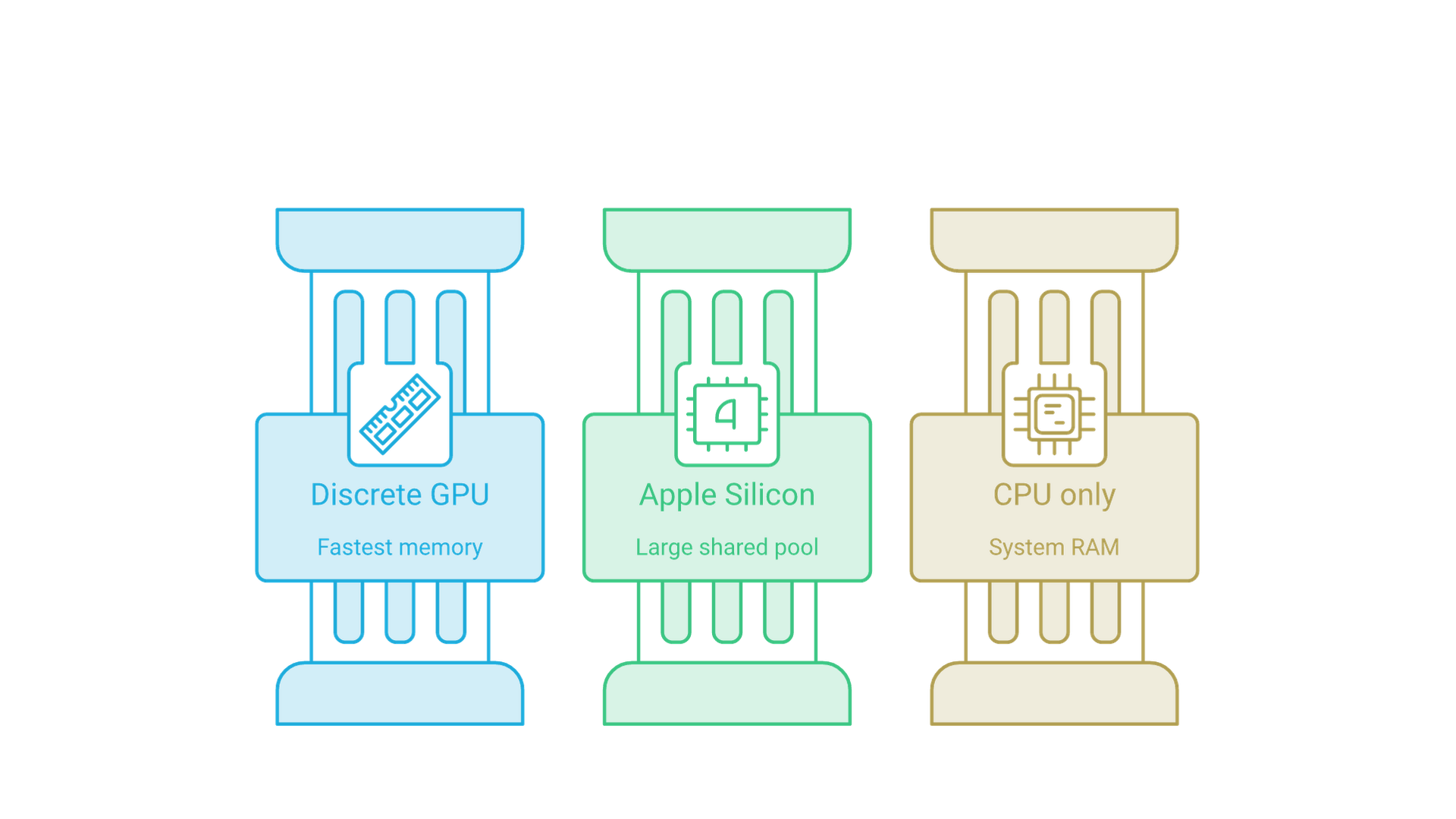
On a PC with a discrete graphics card, fast memory means the card's VRAM. On Apple Silicon and similar systems, it means the unified memory the CPU and GPU share. If the model and its working data do not fit, runtimes push part of the work to slower system RAM, and generation slows sharply.
A Quick Memory Estimate
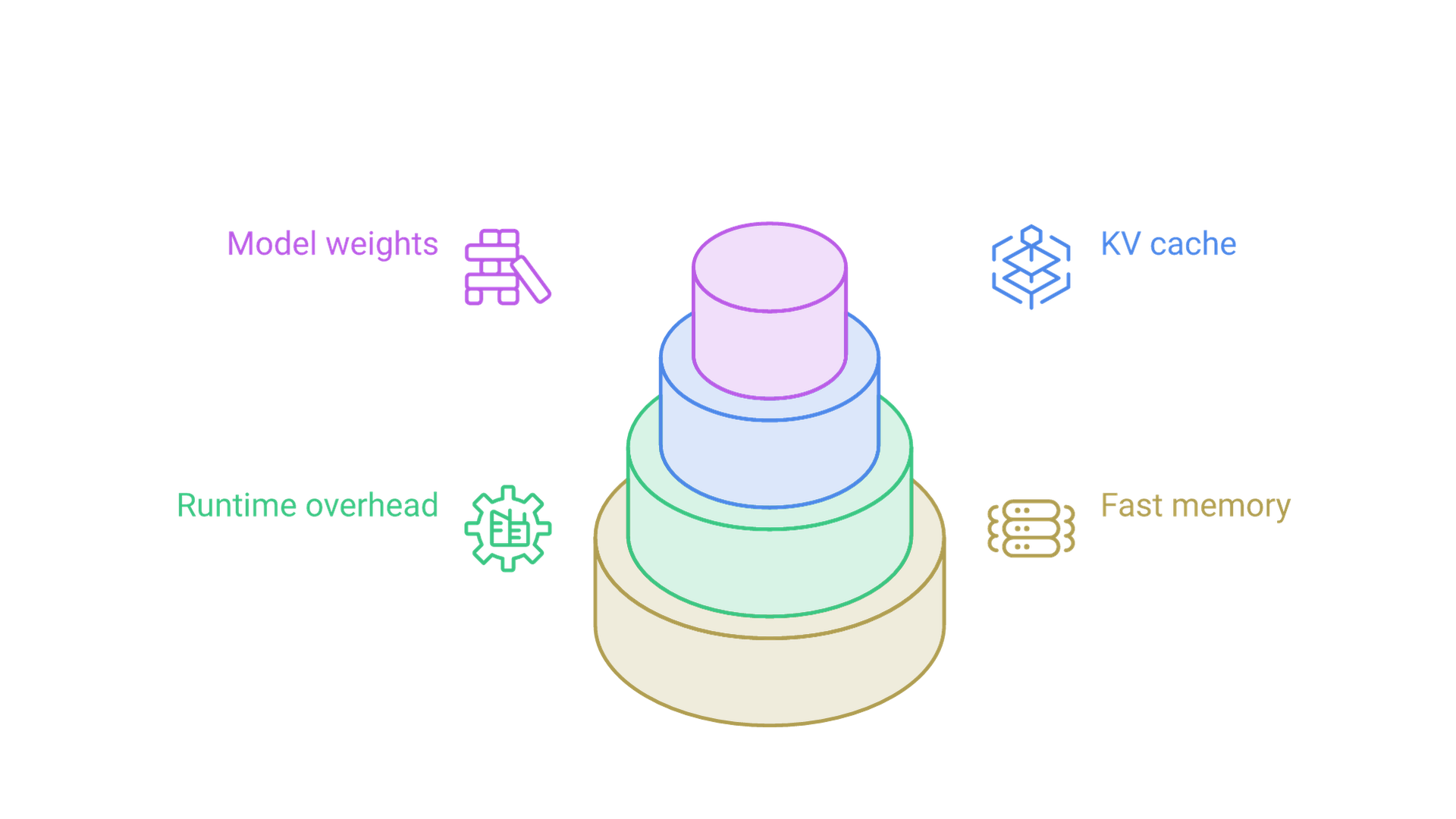
Estimate memory in three parts. First, the weights: parameters multiplied by bits per weight, divided by eight. An 8-billion-parameter model at roughly 4.5 bits per weight, typical of popular 4-bit GGUF files, needs about 4.5 GB; a 70B model at the same precision needs about 39 GB. Second, the KV cache, which stores attention state for every token in the context. Third, runtime overhead for buffers, usually a gigabyte or more. Our guide to LLM quantization formats and memory math covers the bits-per-weight side in detail.
The KV cache is the part people forget. For a model with 32 layers, 8 key-value heads and 128-dimensional heads, the layout in the Llama 3.1 8B configuration, each token stores 2 × 32 × 8 × 128 values. At 16-bit precision that is 128 KiB per token, or about 4 GiB for a 32,768-token context. A model that fits at a short context can stop fitting when you raise it.
Memory Bandwidth Decides Speed
To generate each token, a model reads essentially all of its active weights. Generation speed is therefore roughly bounded by memory bandwidth divided by bytes read per token. A 4.5 GB model on a card with 448 GB/s has a theoretical ceiling near 100 tokens per second; real throughput is lower. The same arithmetic explains why system RAM is slow for LLMs: dual-channel DDR5-5600 provides about 90 GB/s in theory.
Matching Model Size and Quantization to Your Memory
Quantization stores weights at lower precision, which is what makes strong open-weight models practical on consumer hardware. The working rule: choose the largest model that fits fully in fast memory at 4-bit to 5-bit quantization with headroom for your context, and move to 6-bit or 8-bit only if memory remains. Going below about 3 bits costs noticeably more quality, as the llama.cpp quantization tables reproduced in AMD's local AI FAQ show.
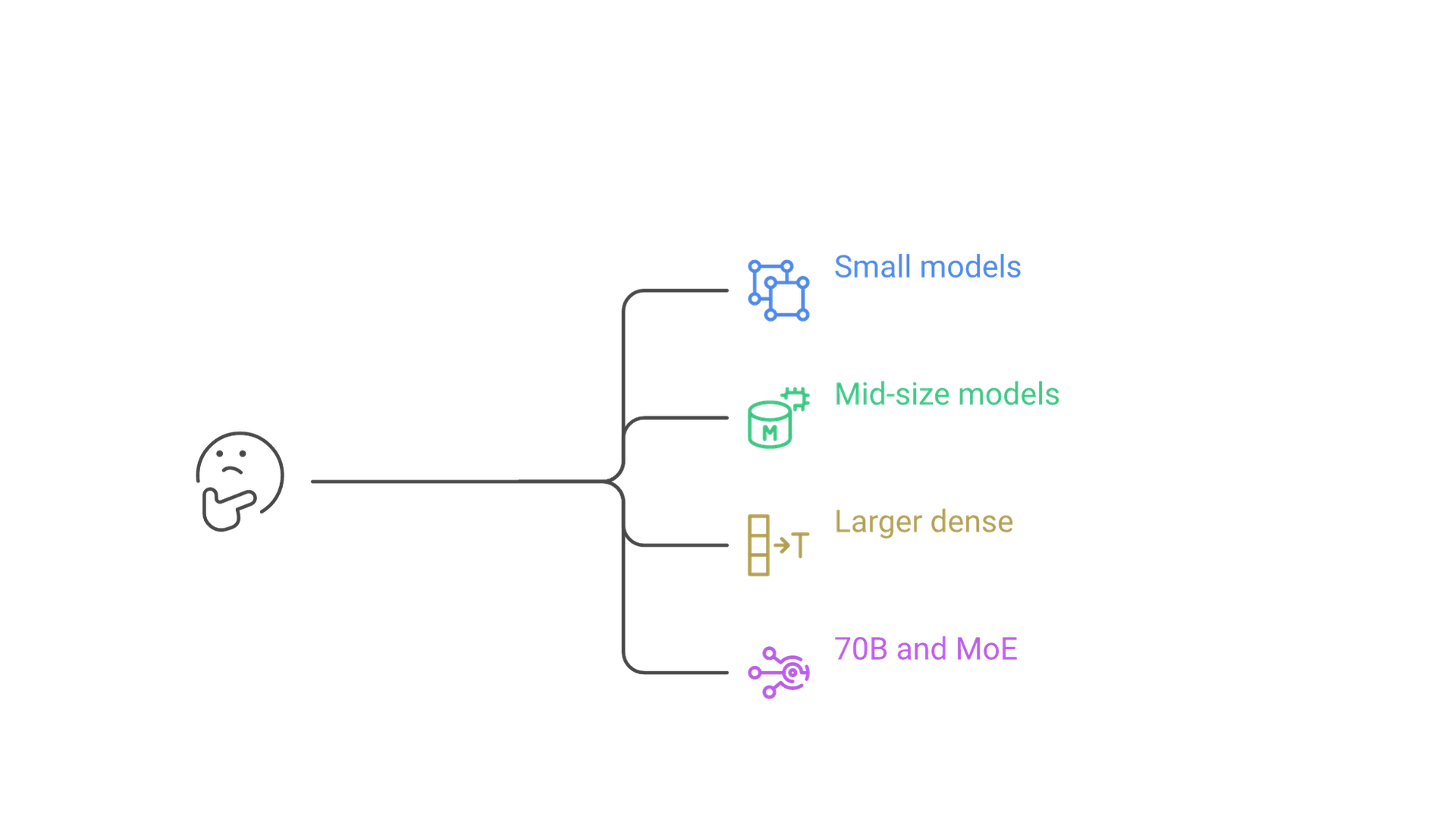
8 GB of VRAM or 16 GB of Unified Memory
This tier handles models in roughly the 3B to 8B range at 4-bit with modest context, which suits chat, summarization and light coding help. LM Studio notes that 8 GB Macs may work with smaller models and modest context, and recommends 16 GB or more of RAM.
12 to 16 GB of VRAM
Here 8B models run at higher precision or longer context, and 12B to 14B models fit at 4-bit. Compact mixture-of-experts models also become practical: the gpt-oss-20b model card states that the model, with 21B total and 3.6B active parameters, can run within 16 GB of memory thanks to MXFP4-quantized expert weights.
24 to 32 GB of VRAM
A 24 or 32 GB card fits dense models around 24B to 32B at 4-bit with comfortable context. A 70B dense model at 4-bit, at about 39 GB for weights alone, still needs offloading or a lower quantization on one 32 GB card.
64 GB or More of Unified Memory
Large unified-memory systems make 70B-class dense models and larger MoE models realistic on one machine. The trade-off is bandwidth: tokens arrive more slowly than from a top graphics card running a model that fits in its VRAM.
Mixture of Experts Changes the Math
Mixture-of-experts (MoE) models activate only a subset of parameters per token. You still need memory for all weights, but speed tracks the active parameters. The Qwen3-30B-A3B model card lists 30.5B total parameters with 3.3B activated, using 8 of 128 experts per token. That makes MoE models a strong fit for unified-memory and hybrid CPU and GPU setups, where capacity is plentiful but bandwidth is limited.
Consumer GPUs vs Apple Silicon vs CPU-Only
A modern NVIDIA GPU is the most common choice, but Apple Silicon Macs are very efficient at running LLMs, and a CPU with enough system RAM can still run smaller models. If you are shopping for a portable machine rather than using a desktop you own, our comparison of the best laptops for edge AI workloads covers specific models.
NVIDIA GeForce GPUs
NVIDIA cards have the broadest runtime support through CUDA. NVIDIA's GeForce comparison page lists these RTX 50 series desktop memory configurations:
| GPU | Memory | Memory bandwidth |
|---|---|---|
| GeForce RTX 5090 | 32 GB GDDR7 | 1,792 GB/s |
| GeForce RTX 5080 | 16 GB GDDR7 | 960 GB/s |
| GeForce RTX 5070 Ti | 16 GB GDDR7 | 896 GB/s |
| GeForce RTX 5070 | 12 GB GDDR7 | 672 GB/s |
| GeForce RTX 5060 Ti | 16 GB or 8 GB GDDR7 | 448 GB/s |
| GeForce RTX 5060 | 8 GB GDDR7 | 448 GB/s |
The 16 GB RTX 5060 Ti illustrates the key lesson: a slower card with more memory often runs a larger model than a faster card with less. Older cards remain useful; Ollama's hardware documentation lists NVIDIA support from compute capability 5.0 with a recent driver.
AMD and Intel GPUs
Ollama lists ROCm v7 support for a range of AMD Radeon and Ryzen AI parts on Linux, a narrower set of Radeon RX 7000 and Radeon PRO W7000 cards on Windows, and Vulkan as an additional path on both. The llama.cpp project also ships HIP, Vulkan and SYCL backends that cover AMD and Intel Arc GPUs.
Apple Silicon and Unified Memory
Apple Silicon shares one memory pool between CPU and GPU, which runtimes use through Metal. Apple's MacBook Pro specifications list the M6 with up to 32 GB at up to 170 GB/s, the M5 Pro with up to 64 GB at 307 GB/s, and the M5 Max with up to 128 GB at 614 GB/s on the 40-core GPU configuration. The Mac Studio specifications list the M5 Ultra with up to 512 GB at 1.2 TB/s. macOS keeps part of unified memory for the system, so not every gigabyte is available to the model.
Large-Memory x86 Systems
Some Windows and Linux machines pair a strong integrated GPU with a large shared memory pool. AMD's FAQ describes the Ryzen AI Max+ 395 with 128 GB of memory and 96 GB of Variable Graphics Memory.
CPU-Only Systems
A CPU with enough system RAM can run small models and quantized MoE models, and llama.cpp is optimized for it. It is the slowest path, so keep models small, prefer MoE designs with few active parameters and expect long prompts to take a while. On x64, LM Studio's system requirements list AVX2 support as required.
Offloading: When the Model Does Not Fit
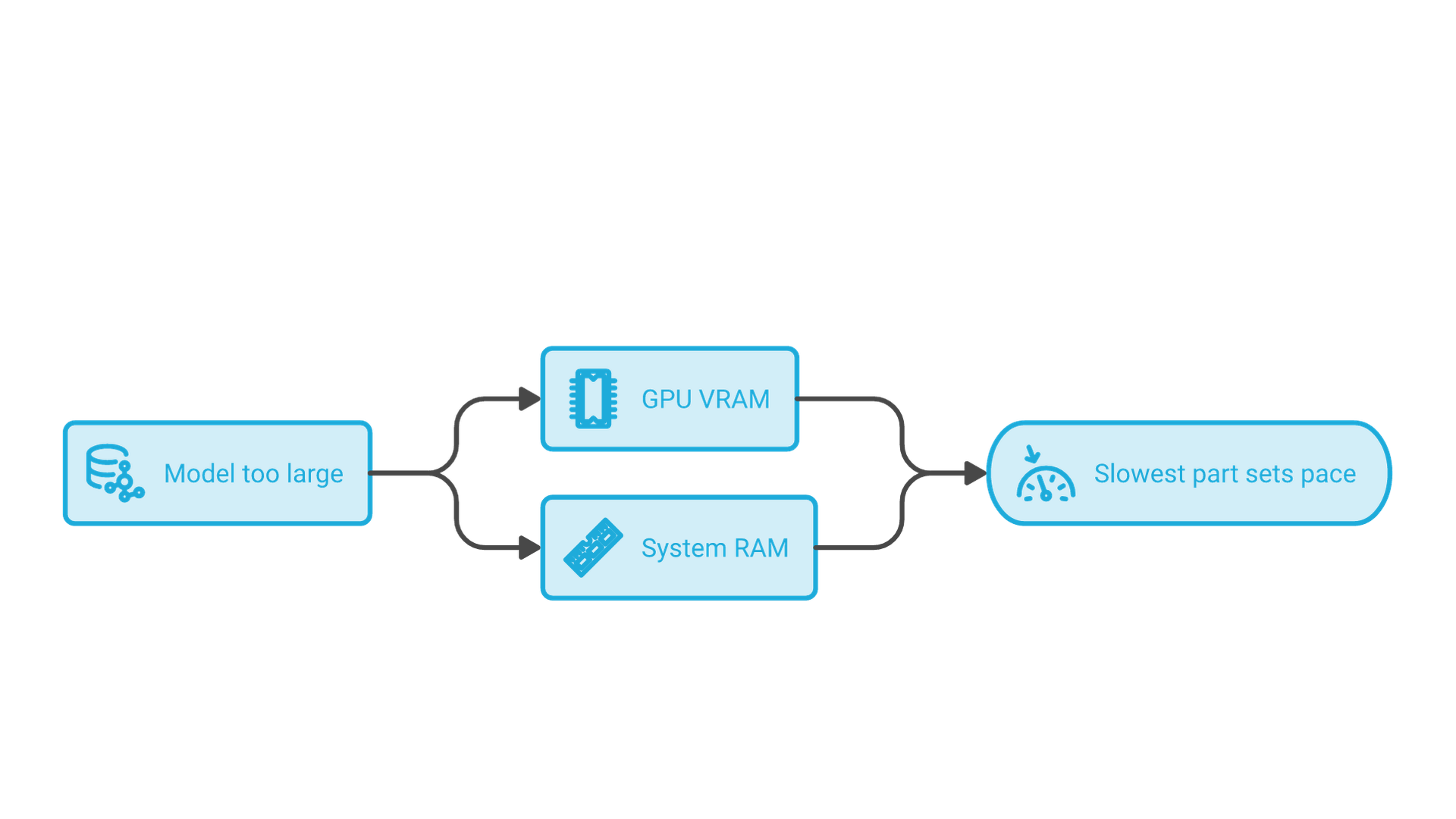
If you do not have enough GPU memory, runtimes can split a model between the GPU and system RAM. Every part that lives in system RAM is read at system RAM speed, so the slowest part sets the pace.
Layer Offloading
The classic approach places some transformer layers on the GPU and the rest on the CPU; the llama.cpp README calls this CPU and GPU hybrid inference for models larger than total VRAM. In the llama.cpp server documentation, --gpu-layers sets how many layers live in VRAM and defaults to automatic, and a fit option adjusts unset arguments to fit device memory. LM Studio exposes the same idea as its GPU Offload setting.
Expert Offloading for MoE Models
For MoE models there is a better split: keep attention and shared weights on the GPU and place expert weights in system RAM. llama.cpp provides --cpu-moe to keep all MoE weights on the CPU and --n-cpu-moe to do so for the first N layers. Because only a few experts are read per token, this usually costs less speed than offloading whole layers.
Context Length and KV Cache Settings
Ollama's context-length documentation says it defaults to 4k context below 24 GiB of VRAM, 32k from 24 to 48 GiB and 256k at 48 GiB or more. The Ollama FAQ explains that Flash Attention can significantly reduce memory use as context grows, and that the KV cache can be quantized to q8_0, at about half the memory of f16, or q4_0, at about a quarter with more precision loss. Run ollama ps and check the PROCESSOR column: "100% GPU" means the model fits, while a CPU/GPU split means part of it was offloaded.
Best Tools to Run LLMs Locally
Desktop apps and lightweight servers now handle downloads, hardware detection and local APIs.
LM Studio: An Intuitive GUI for Everyone
LM Studio lets you find and download models from Hugging Face and run them with a click. It supports Apple Silicon Macs, x64 and ARM Windows, and Linux on x64 and ARM64, and recommends at least 4 GB of dedicated VRAM on Windows. The LM Studio developer documentation describes serving models on localhost or your network with OpenAI-compatible endpoints, so other applications can use a local model.
Configuring LM Studio for Peak Performance
Raise GPU Offload as far as memory allows, keep context length at what the task needs rather than the maximum, and leave headroom. If a model is too large, step down one model size before dropping to a very low quantization.
Install Ollama: The Command Line Powerhouse
Ollama runs on Linux, macOS and Windows as a local server with an API that other tools can call. Its FAQ says it loads a model onto one GPU if it fits, spreads it across GPUs if it does not, and unloads idle models after five minutes by default. Running a model takes one command, such as ollama run gpt-oss:20b from the Ollama model library.
Optimizing Model Files
The GGUF format used by llama.cpp, LM Studio and Ollama packages quantized weights for fast local loading. File names encode the quantization, such as Q4_K_M or Q8_0, so you can compare memory use before downloading.
Best Models for Local Deployment
New open-weight models arrive constantly, so choose by size, license and memory guidance on the model card rather than by name alone.
General-Purpose Model Families
Meta's Llama, Mistral AI, Alibaba's Qwen, Google's Gemma and OpenAI's gpt-oss families publish open-weight models in sizes that suit consumer hardware, mostly available as GGUF files in several quantizations.
Models for Code Generation
Coding-tuned models from families such as Qwen and DeepSeek are popular, and running them locally keeps proprietary code on your machine.
Specialized Models and Mixture of Experts
MoE models such as gpt-oss-20b and Qwen3-30B-A3B are attractive on a single machine because their active parameter counts are small relative to total size, so they respond faster than dense models of similar size.
Fine Tuning and Customization
You can tailor open-weight models to your data and tasks in two main ways.
How to Fine Tune Models?
Fine tuning trains a model on a smaller dataset so it adopts a tone, domain vocabulary or output format. Full fine tuning is usually beyond consumer hardware, but LoRA and QLoRA train small adapter weights instead. The QLoRA paper showed its approach reduces memory enough to fine tune a 65B model on a single 48 GB GPU; smaller models need far less.
Retrieval Augmented Generation (RAG)
RAG retrieves relevant passages from your local documents and adds them to the prompt. It suits changing knowledge, while fine tuning suits behavior and format.
When Consumer Hardware Is Not Enough
A single consumer machine works for one user or a small group. It becomes the wrong tool when several people need the model at once, when you need very long contexts with large models, or when uptime and access control matter. A dedicated server sized for concurrency is the next step, and our guide to local AI server specs covers GPU memory, power and cooling for that build.
Cognativ's AI infrastructure services cover sizing and running private inference, and our LLM solutions cover choosing and adapting models for business use cases.
Frequently Asked Questions
How much VRAM do I need to run a local LLM?
About 8 GB runs 7B to 8B models at 4-bit with short context. 12 to 16 GB fits 12B to 14B models or compact MoE models such as gpt-oss-20b, and 24 to 32 GB fits dense models around 24B to 32B.
Can I run an LLM without a GPU?
Yes. llama.cpp, LM Studio and Ollama can run on the CPU using system RAM. It is slower because system memory bandwidth is much lower, so small models and MoE models work best.
Is a Mac good for running local LLMs?
Yes. Unified memory lets Apple Silicon load bigger models than most consumer graphics cards, though it generates tokens more slowly than a high-end GPU running a model that fits in VRAM.
What happens if a model is larger than my VRAM?
The runtime offloads part of it to system RAM. The model still runs, but the offloaded part is read at system RAM speed. Expert offloading for MoE models usually costs less speed than offloading whole layers.
Can a 70B model run on consumer hardware?
At 4-bit a 70B dense model needs roughly 39 GB for weights plus context memory. That exceeds a single 32 GB card without offloading but fits on systems with 64 GB or more of unified memory, at modest speed.
Does context length affect memory use?
Yes. The KV cache grows with every token. For Llama 3.1 8B, a 32,768-token context needs about 4 GiB at 16-bit precision. Flash Attention and KV cache quantization reduce that cost.
Conclusion: The Future of Local AI
Running local LLMs on consumer hardware comes down to a few honest numbers. Memory capacity decides which models you can load, bandwidth decides how fast they respond, and context length quietly consumes the headroom between them. Match model and quantization to the fast memory you have, use MoE models and offloading to stretch it, and keep expectations aligned with what mid-sized open-weight models do well.
As hardware and efficient models improve, more work will move onto machines people already own. If you are planning a private LLM deployment for your team and want help sizing hardware and choosing models, talk to Cognativ about your local AI project.